Starting a YouTube channel doesn’t mean you need to spend hundreds of dollars on editing software. In fact, many of today’s creators started with free video editing tools — some of which are powerful enough for Hollywood-level production.
This updated guide not only lists popular free editors, but also adds AI-powered tools, creator community insights, and workflow combinations to help you edit smarter, not harder.
1. DaVinci Resolve (Windows / Mac / Linux)
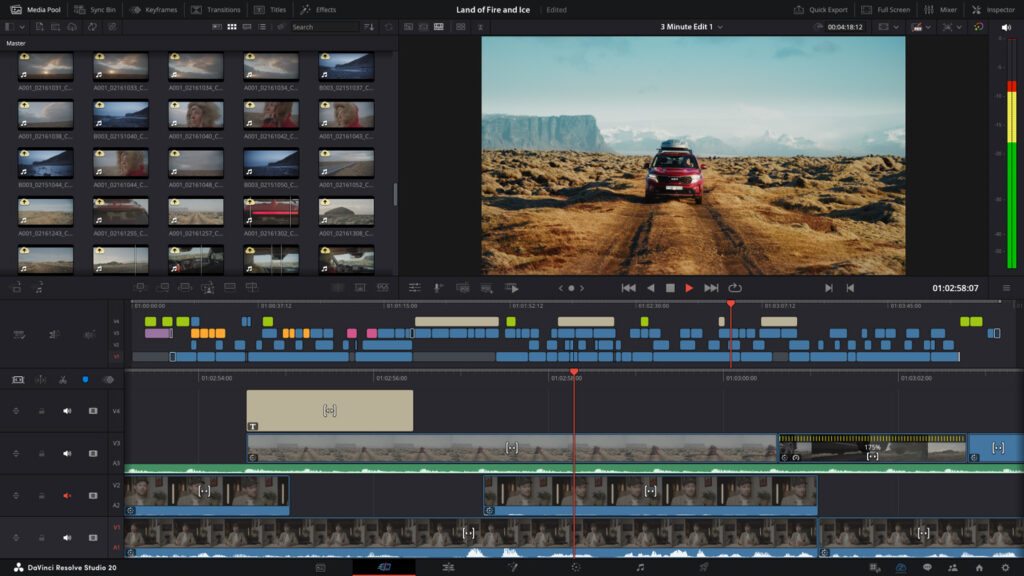
If you want pro-level features for free, this is it.
- Why it’s great: Advanced color grading, multi-track editing, professional audio tools.
- New features: AI noise reduction, smart masking, improved speed editor integration.
- Community feedback: Redditors often say DaVinci is “as close to Premiere Pro as you can get without paying.”
- Best for: Creators ready to grow skills and make cinematic content.
2. CapCut (Mobile & Desktop)
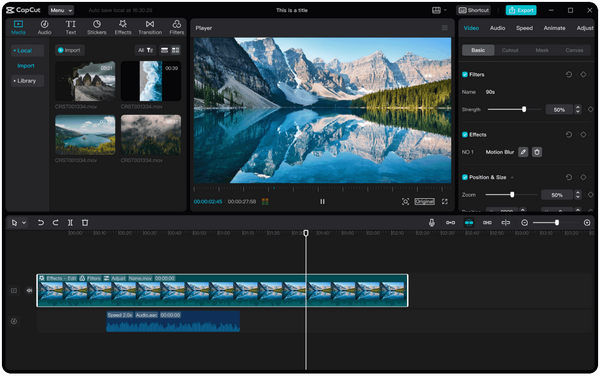
What started as a TikTok editor is now a YouTube creator favorite.
- Why it’s great: Templates, quick effects, built-in stock music.
- New features: Auto-captions, AI stabilization, script-to-video generation.
- Community feedback: Many small YouTubers use CapCut for Shorts because “it’s fast, free, and easy to repurpose long videos into clips.”
- Best for: Short-form creators and those editing on the go.
3. Shotcut (Windows / Mac / Linux)
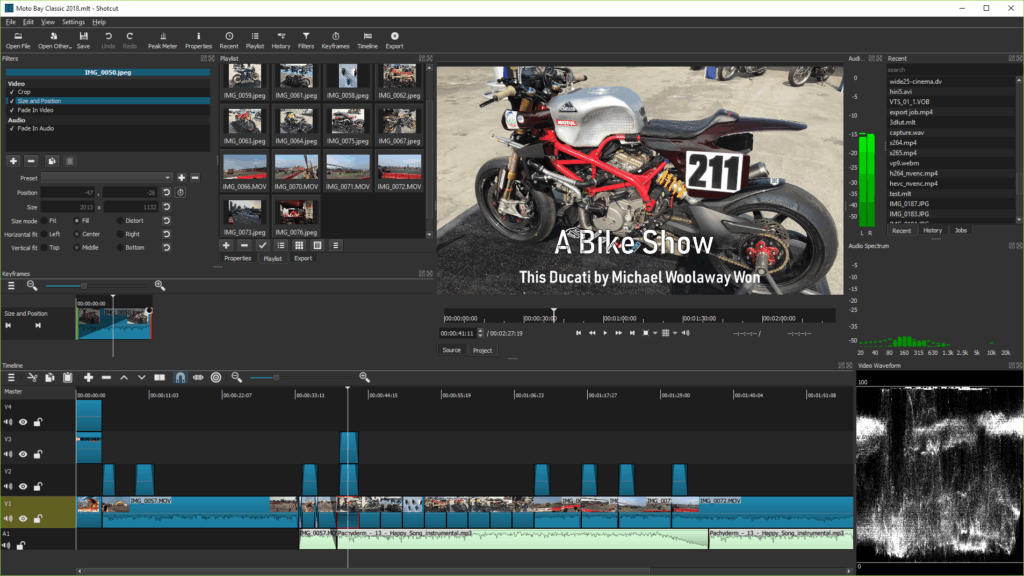
Open-source, no watermarks, supports tons of formats.
- Why it’s great: Lightweight, customizable, stable.
- Features: Keyframes, transitions, audio filters, multiple export presets.
- Best for: Beginners who want something simple but flexible.
4. iMovie (Mac / iOS)
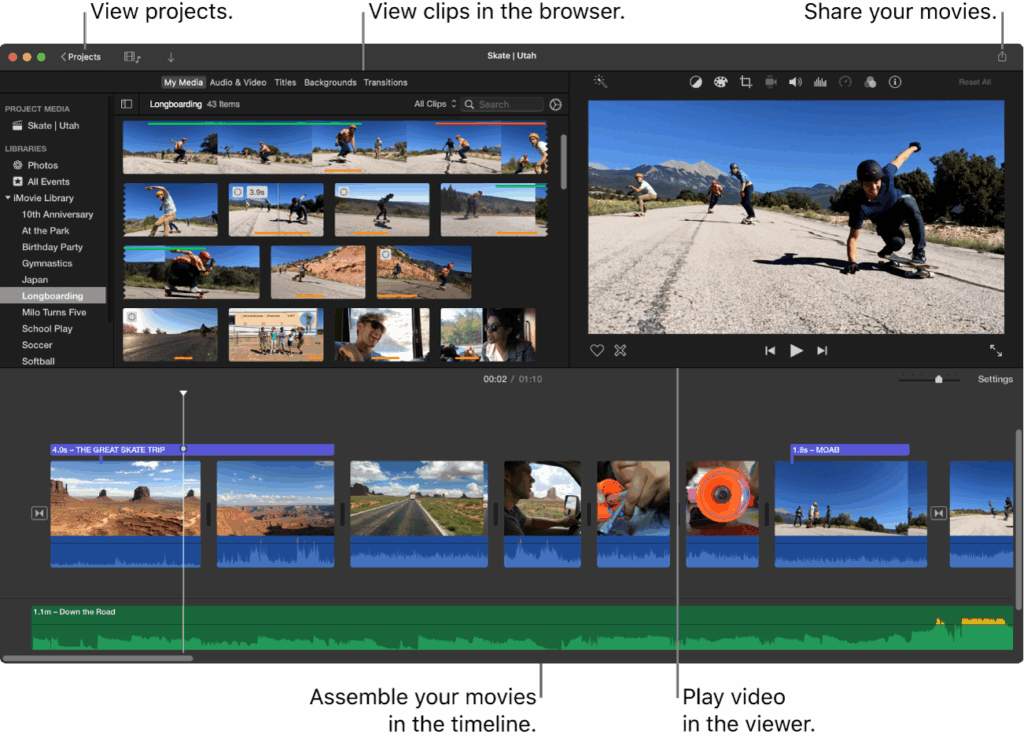
For Apple users, this is the easiest entry point.
- Why it’s great: Drag-and-drop simplicity, polished templates.
- Features: Title cards, transitions, sound effects, quick stabilization.
- Best for: Beginners editing vlogs, tutorials, or personal projects.
5. Descript (Free Plan)
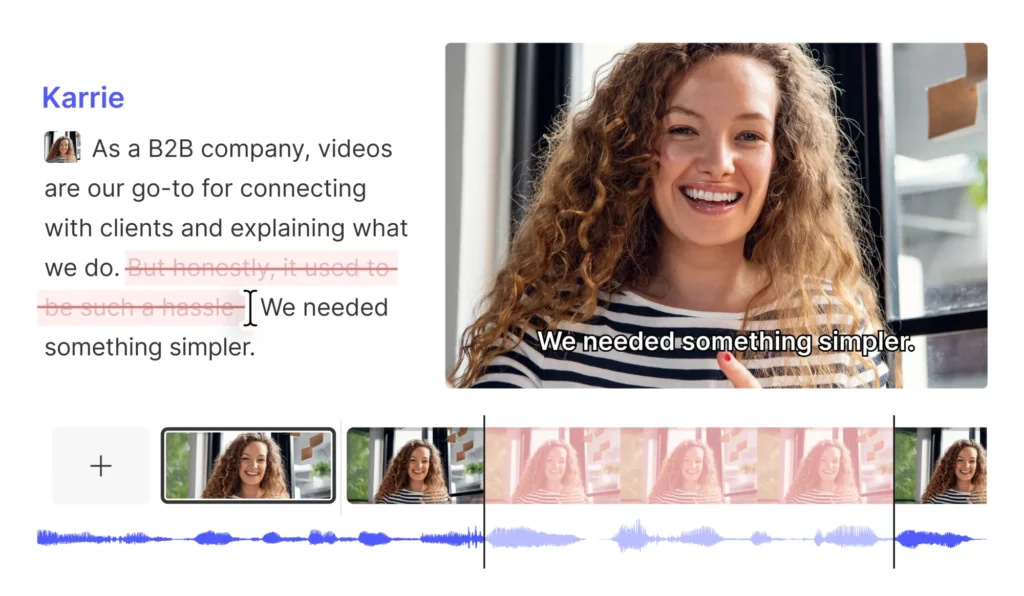
Think of it as “editing video like editing text.”
- Why it’s great: Edit your video by editing the transcript. Delete words = delete footage.
- Features: Auto-captions, overdub voice, podcast + video workflow.
- Best for: Talking-head YouTubers, podcasters, educators.
6. Munch (AI Highlight Tool)
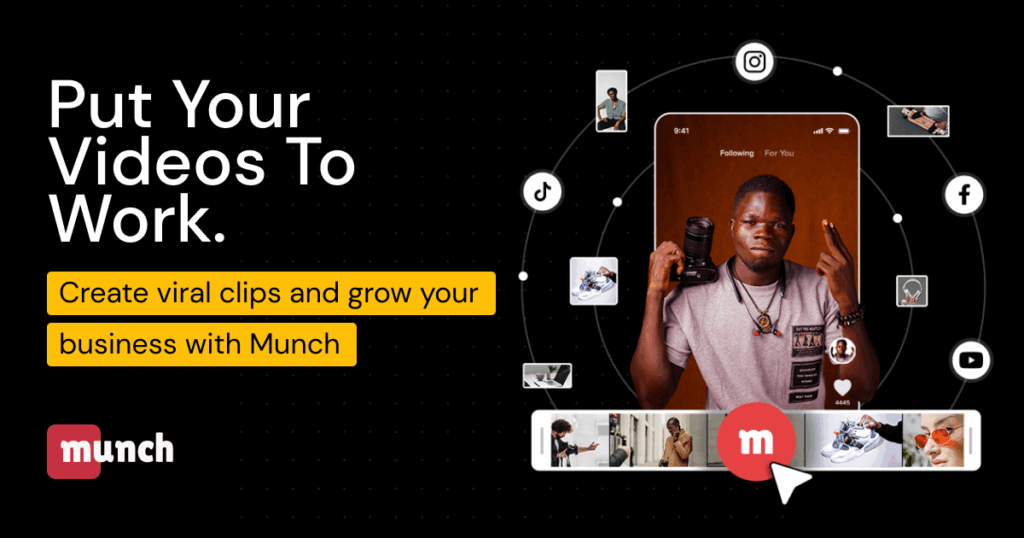
Not a traditional editor — but a content multiplier.
- Why it’s great: Uses AI to automatically extract the most engaging clips from long videos.
- Features: Highlight detection, social-media-ready formats, auto-subtitles.
- Best for: Turning long tutorials, livestreams, or podcasts into Shorts.
7. Runway (Free Tier)
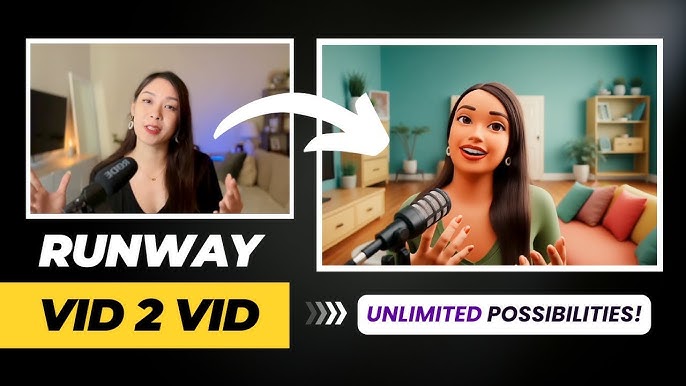
An AI-powered creative lab for video experiments.
- Why it’s great: Generative effects, text-to-video, background replacement.
- Features: Green-screen without a green screen, AI motion tracking.
- Best for: Creators who want to add unique visuals or experiment with new styles.
Workflow Combinations (Tool Paths for Different Needs)
| Goal | Tools | Why This Combo Works |
|---|---|---|
| Long-form YouTube videos | DaVinci Resolve + Descript | Resolve handles visuals & sound, Descript speeds up cutting & captioning |
| YouTube Shorts / TikTok | CapCut + Munch | CapCut for quick edits, Munch for AI highlight extraction |
| Simple vlogs (Mac users) | iMovie only | Lightweight, fast, and polished |
| Creative / experimental content | Runway + Shotcut | Runway generates effects, Shotcut integrates them into full edits |
Tips for Editing Without Spending Money
- Use YouTube’s free resources: The YouTube Audio Library has royalty-free music and sound effects.
- Lean on templates: Don’t reinvent the wheel — free tools often come with transitions and intros.
- Mix tools smartly: For example, use Munch to generate Shorts, then polish them in CapCut.
- Upgrade only when ready: Free tools can take you very far. Invest in paid software only when your workflow demands it.
Final Thoughts
You don’t need to spend a dime to create high-quality videos. With tools like DaVinci Resolve for advanced edits, CapCut for Shorts, Descript for text-based editing, and Runway for AI-powered visuals, you already have everything you need to launch your YouTube channel.
The real key isn’t the tool — it’s publishing consistently, learning as you go, and adapting your workflow as your channel grows.