The best free video editing software for a YouTube beginner is the editor that fits the device you already own and lets you finish a video this week. Choose iMovie for the simplest Apple workflow, CapCut for fast Shorts and mobile editing, DaVinci Resolve for a powerful editor you can grow into, or Shotcut for a free, open-source desktop option.
You do not need the editor with the longest feature list. You need one that can import your footage, remove mistakes, arrange a clear story, balance speech, add simple text, and export a reliable file. This guide compares the real trade-offs so you can choose once, finish your first project, and change tools only when a specific limitation appears.
Software availability and plan details were checked against official product pages in August 2026. Free plans and features can change, so confirm the current terms before moving an important project.
Quick answer: which free editor should you choose?
| Choose this | Best for | Main advantage | Important limitation |
|---|---|---|---|
| iMovie | New creators using Mac, iPhone, or iPad | Simple, free Apple workflow | Apple devices only; fewer advanced controls |
| CapCut | Shorts, captions, and phone-first creators | Fast editing across mobile, desktop, and web | Some effects and AI features require a paid plan |
| DaVinci Resolve | Long-form videos and creators who want room to grow | Deep editing, color, audio, and effects tools | Steeper learning curve and heavier system demands |
| Shotcut | Windows, Mac, or Linux users who want open-source software | Free, cross-platform, and works locally | Less polished guidance and fewer one-click templates |
| Descript | Talking-head, interview, podcast, and screen-recording channels | Transcript-based rough cuts and captions | The free plan has monthly media limits |
If you still cannot decide, install the option that matches your row and make a 60-second test video. Import three clips, cut one mistake, add one title, balance the voice, and export. A successful export tells you more than another hour of comparison.
What a YouTube beginner actually needs
Before comparing brands, decide whether the editor can handle these six jobs:
- Your device: it runs reliably on the computer, phone, or tablet you already use.
- Your normal footage: it imports the resolution and format produced by your camera or phone.
- A clear rough cut: you can trim clips, rearrange ideas, and remove repetition without fighting the interface.
- Understandable audio: you can set speech levels, reduce distracting differences, and keep music below the voice.
- Useful text: it can add readable titles, labels, and captions when the content needs them.
- A clean export: the finished file has no unwanted watermark and can be uploaded to YouTube at the intended resolution.
Do not make cinematic effects, AI generation, or a huge template library your first requirement. The editing decisions that improve a YouTube story—what to keep, remove, clarify, and emphasize—matter more than the software.
1. iMovie: best for the simplest Apple workflow
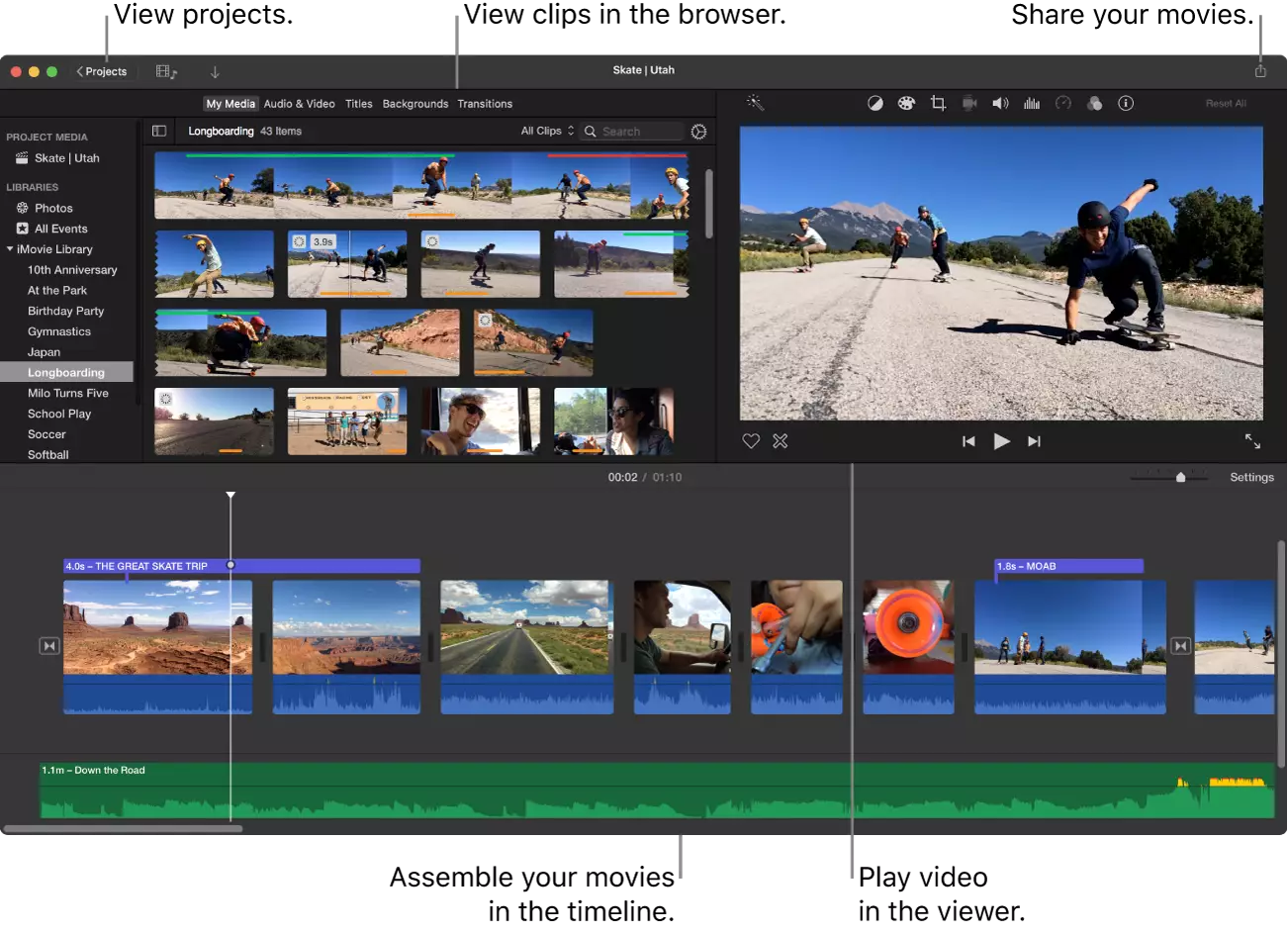
Choose iMovie if: you own a Mac, iPhone, or iPad and want the shortest path from footage to a clean first video.
Apple describes iMovie as a free editor for its devices, with trimming, titles, transitions, audio, picture-in-picture, split screen, green-screen effects, and support for 4K projects on compatible hardware. Projects can move from iPhone or iPad to a Mac, and a mature project can later be sent to Final Cut Pro.
Learning curve: low. The limited set of controls is an advantage when your real task is learning how clips fit together.
Drawback: it is restricted to Apple devices and offers less control than a professional timeline. Do not treat that as a reason to upgrade before you encounter a real editing problem.
Upgrade when: you repeatedly need more precise audio mixing, advanced color work, complex motion graphics, or larger multi-camera projects—not simply because another creator uses a professional app.
Check iMovie on Apple’s official site.
2. CapCut: best for Shorts and mobile-first editing
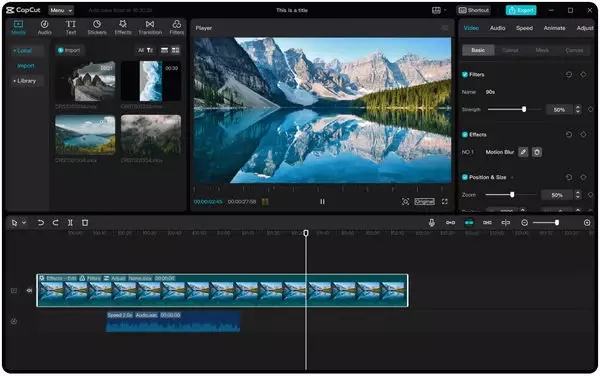
Choose CapCut if: you make Shorts, edit on a phone, need captions quickly, or want the same basic workflow across mobile and desktop.
CapCut offers free versions for mobile and desktop and also provides a browser editor. Its official product pages highlight trimming, transitions, filters, captions, format changes, and creator-focused templates. That makes it a practical starting point for vertical video and simple talking-head content.
Learning curve: low to medium. Basic cuts are fast, but the number of effects and AI options can distract you from the story.
Drawback: “free download” does not mean every asset or feature is permanently free. Build your repeatable workflow around the basic timeline, your own media, and features that remain available to your account.
Upgrade when: a paid feature reliably saves more production time than it costs, or move to a desktop editor when long projects become hard to organize.
Check CapCut’s current platforms and free version.
3. DaVinci Resolve: best free editor to grow into
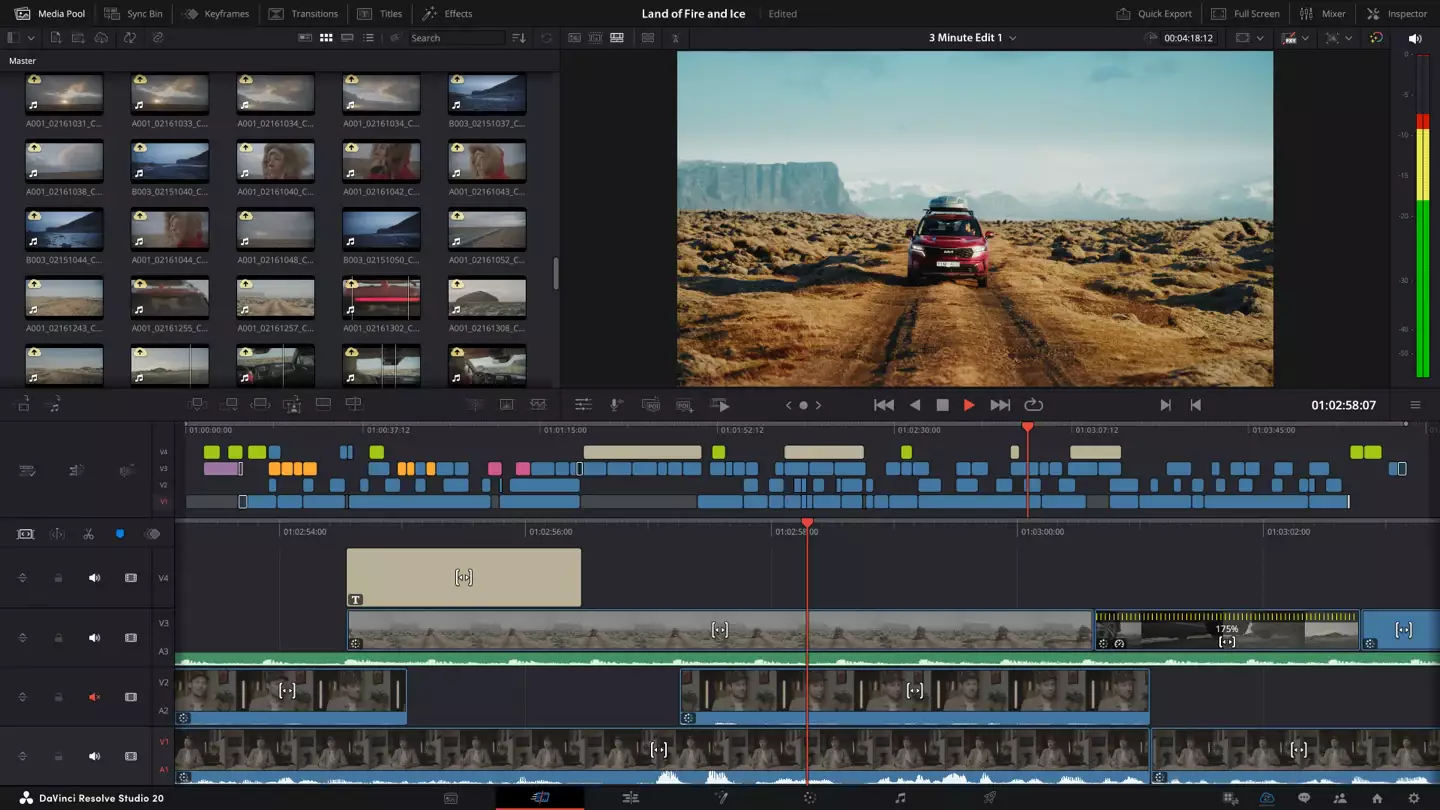
Choose DaVinci Resolve if: you edit on Windows, Mac, or Linux, expect to make long-form videos, and are willing to learn a more capable desktop editor.
Blackmagic Design’s free version combines editing, color correction, visual effects, motion graphics, and audio post-production. The company says the free version supports many 8-bit formats up to 60 frames per second and Ultra HD 3840 × 2160; the paid Studio version adds higher-end formats and additional effects and AI tools.
Learning curve: medium to high. Start on the Edit page and learn only import, timeline editing, basic audio, titles, and export. Ignore Fusion and advanced color work until a project actually needs them.
Drawback: it can demand more storage, memory, graphics performance, and learning time than a simple editor. Test your normal footage before committing a large project.
Upgrade when: a Studio-only format or feature is part of a proven workflow. Most beginners should spend their first budget on clearer audio, reliable storage, or production time.
Compare the free and Studio versions on Blackmagic Design.
4. Shotcut: best free open-source desktop option
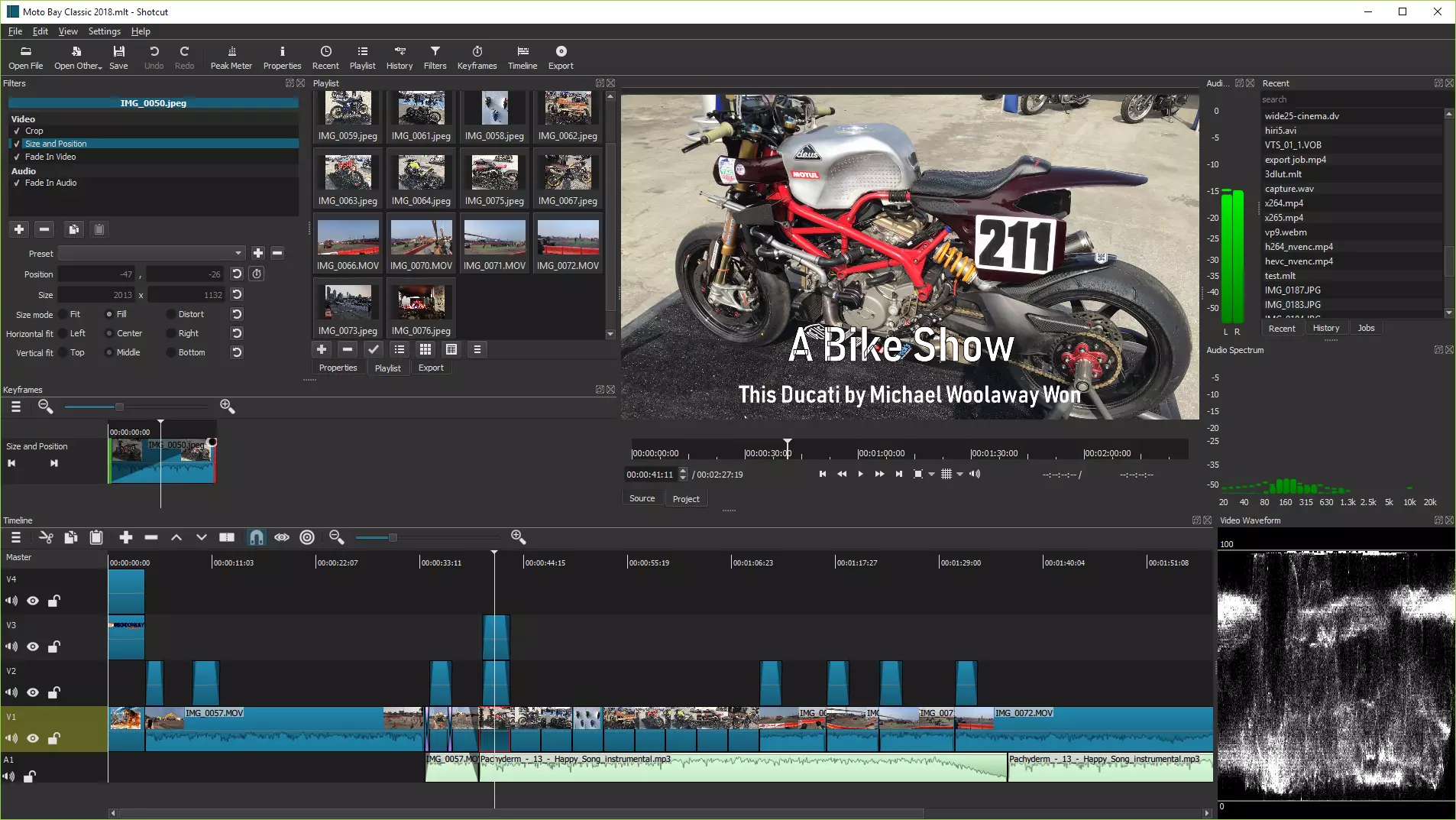
Choose Shotcut if: you want a free editor for Windows, Mac, or Linux, prefer a local workflow, or your computer struggles with heavier professional software.
Shotcut describes itself as a free, open-source, cross-platform editor. It supports a broad range of formats, native timeline editing, filters, keyframes, and resolutions up to 4K. It is a real editor rather than a time-limited trial.
Learning curve: medium. The interface is more utilitarian than template-led tools, but the essential timeline workflow is conventional.
Drawback: you may need to learn more from documentation and tutorials, and it has fewer guided shortcuts for social formats.
Upgrade when: collaboration, advanced audio repair, motion graphics, or a specific professional workflow becomes a recurring requirement.
Download Shotcut from its official site.
5. Descript: best for spoken-word rough cuts
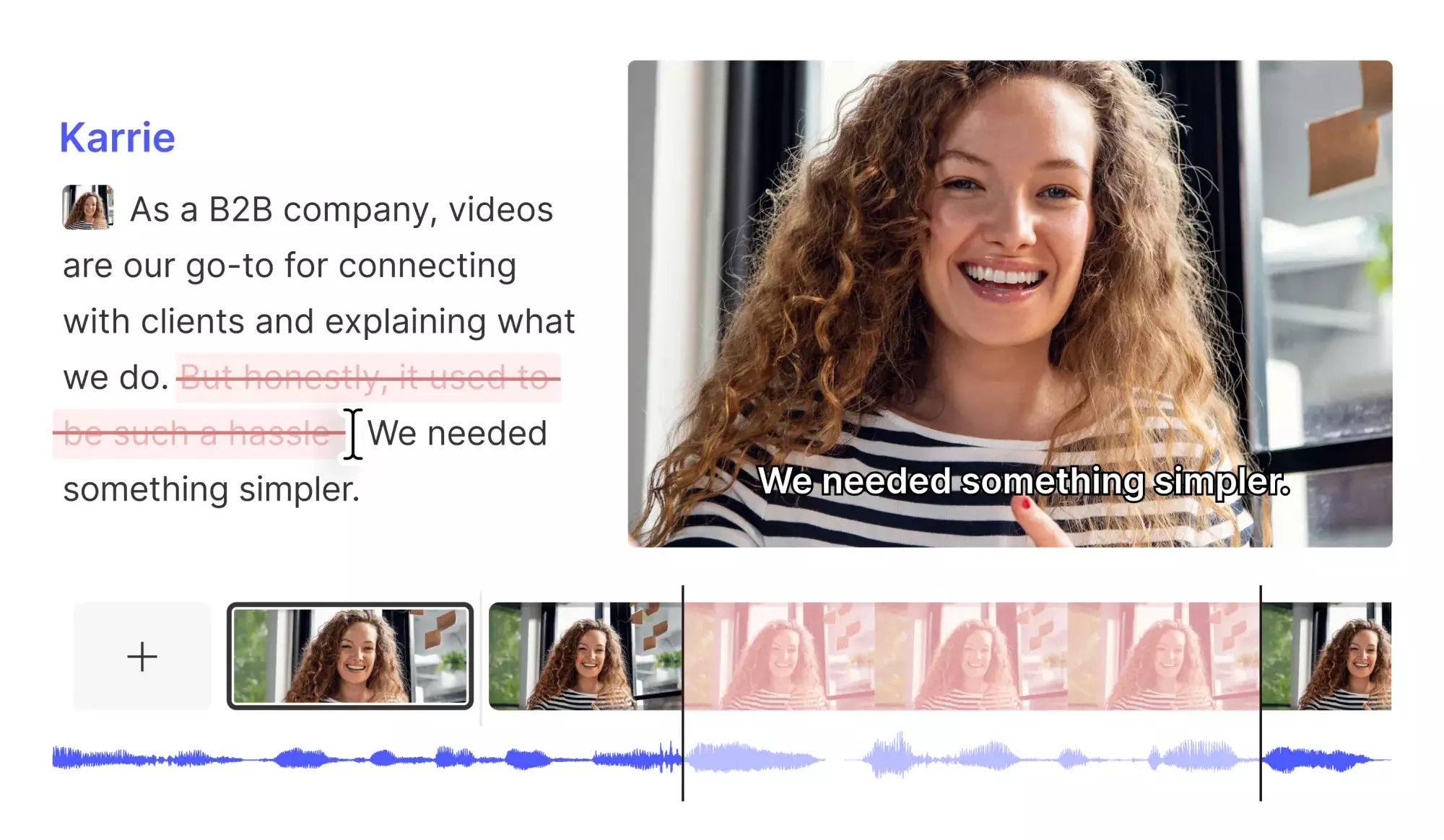
Choose Descript if: your videos are mostly interviews, tutorials, podcasts, screen recordings, or a person speaking to camera.
Descript turns recorded speech into a transcript so you can remove or rearrange spoken sections through text. Its free plan can be useful for testing that workflow, and its official pricing page lists a monthly allowance for processed media rather than unlimited free transcription.
Learning curve: low for rough cuts. It is especially useful for finding repeated thoughts and tightening a long conversation.
Drawback: a text edit does not automatically create good visual pacing. You may still want iMovie, CapCut, Resolve, or Shotcut for B-roll, detailed sound, and the final visual pass.
Upgrade when: the time saved on transcription, captions, or spoken-word editing consistently exceeds the subscription cost.
Check Descript’s current free-plan limits.
Tools that are not a permanent free editor
Filmora is easy for beginners to learn, but Wondershare states that normal trial exports include a watermark. Treat it as paid software you can test, not as your long-term free editor.
Adobe Premiere offers a full seven-day trial and then requires a subscription. It can be a sensible later choice for Adobe-centered or collaborative workflows, but the trial is not a durable zero-budget setup.
Premiere Rush should no longer be a beginner recommendation. Adobe stopped offering it for general download on September 30, 2025 and says technical support ends September 30, 2026. Existing users should follow Adobe’s transition guidance instead of starting new projects in Rush.
AI clip generators and visual-effects services can assist a workflow, but they are not substitutes for a dependable timeline editor. Add one only when you can name the repeated task it will solve.
Zero-budget workflows for different YouTube channels
| Channel type | Start with | Keep the workflow simple |
|---|---|---|
| Shorts or phone-first channel | CapCut | Cut, caption, check the vertical frame, export |
| Simple vlog on Apple devices | iMovie | Build the story, clean the voice, add only necessary titles |
| Long-form tutorial or documentary | DaVinci Resolve | Use one editor; add Descript only if transcript editing saves time |
| Talking-head or podcast | Descript plus one timeline editor | Make the spoken rough cut first, then finish visuals once |
| Offline or open-source desktop workflow | Shotcut | Organize local files, make the rough cut, then one audio and export pass |
A combination is useful only when each tool has one clear job. Moving files among four apps usually creates more delay, compression, naming confusion, and failure points than it removes. The broader repeatable content system guide shows how editing fits between scripting, filming, publishing, and review.
Use this first-project test before committing
- Create a folder for footage, project files, graphics, audio, and exports.
- Import three representative clips from your normal camera or phone.
- Build a rough cut of 60 to 90 seconds.
- Add one title, one B-roll cutaway, and one music track below the voice.
- Export at the resolution you plan to upload.
- Watch the exported file on a phone with headphones and through its speaker.
- Write down what was genuinely difficult before trying another editor.
If the test succeeds, use the same editor for your next three videos. Repetition is what turns software into a fast workflow. Follow the complete first YouTube video workflow to connect the edit to planning, filming, packaging, upload, and review.
Frequently asked questions
Do free video editors add a watermark?
Some do and some do not. iMovie, the free version of DaVinci Resolve, and Shotcut can produce normal exports without a forced trial watermark. Filmora’s standard trial adds a watermark. CapCut includes free editing but some assets and features are paid, so test your exact export before building a recurring format.
Is DaVinci Resolve too difficult for a beginner?
Not if you deliberately ignore most of it. Learn the Edit page, basic audio, a simple title, and export first. Choose iMovie or CapCut instead if Resolve performs poorly on your computer or the interface prevents you from finishing.
Should I edit YouTube videos on a phone or computer?
Use a phone for a short, fast, mobile-first workflow. A computer becomes more useful when projects contain many clips, long recordings, layered audio, or extensive B-roll. The right choice is the one that reduces file transfers and lets you finish reliably.
When should I pay for editing software?
Pay when you can name a repeated limitation and estimate the time or quality it costs you. Do not pay because a tool looks professional. A free editor that you know well is more valuable than a subscription you are still learning.
The recommendation
Start with one editor: iMovie for Apple simplicity, CapCut for Shorts and mobile speed, DaVinci Resolve for long-term desktop growth, or Shotcut for an open-source local workflow. Use Descript as a spoken-word assistant when it solves a real bottleneck. Then publish three videos before reconsidering the software. Your editing judgment and repeatable process will improve the channel more than switching tools.